TV Garden is currently the top subscription-free online live TV channel streaming platform that brings thousands of live television channels from 130+ countries across the globe under a single roof, so that you can watch live football, basketball, cricket, news, or even reality shows on the same application. Now, TV Garden is compatible with iOS devices and can be used on both iPhone and iPad, offering all its features and a vast channel list for free.
Numerous online TV channels streaming apps are out there on App Stores, but the biggest drawback they all have in common is the registration requirement and the hefty subscription fees that you have to pay first to get access to the content. TV Garden’s popularity has skyrocketed these days because it does not need you login and its completely free to watch live TV channels.
It collects all the popular TV channels from all around the world across all genres, including sports, media, movies, music, comedy, etc. There are many exclusive content from other paid platforms also available in this app. You do not need to juggle through other streaming platforms to find your favourite TV program. In this guide, you get learn about how to use TV Garden on iOS devices without subscription charges or creating an account.
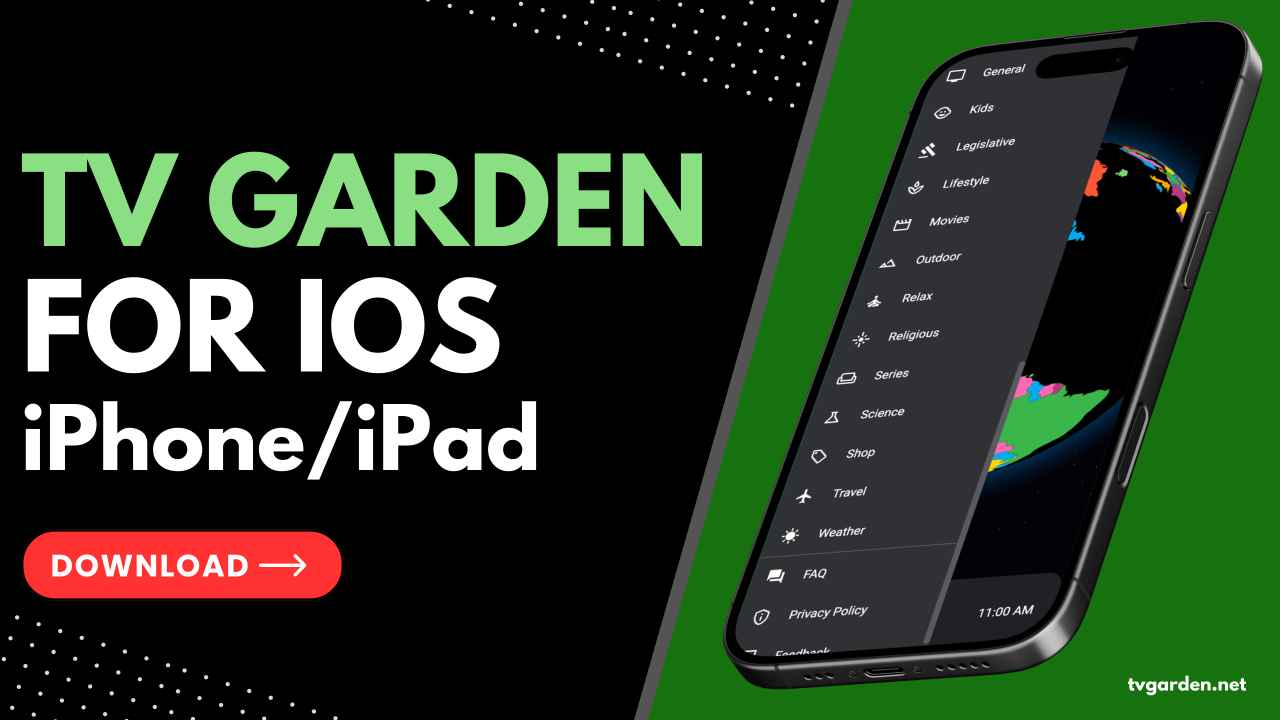
About TV Garden For iOS
TV Garden is totally free of cost and offers the highest quality live TV channel streaming experience. The platform is quite well optimized for iOS devices, so it works smoothly on all iPhone or iPad devices, and its easy to understand UI makes browsing through the TV channels list quite convenient.
If you use TV Garden on iOS, you won’t need to download any third-party app, as you can use the official TV Garden web portal through a browser like Safari, which makes you feel more like using an app, not a web portal. Using TV Garden on iOS also gives you a full-screen viewing experience on your device without any notification bar or share icons.
How to Use TV Garden on iPhone (Without Jailbreaking)?
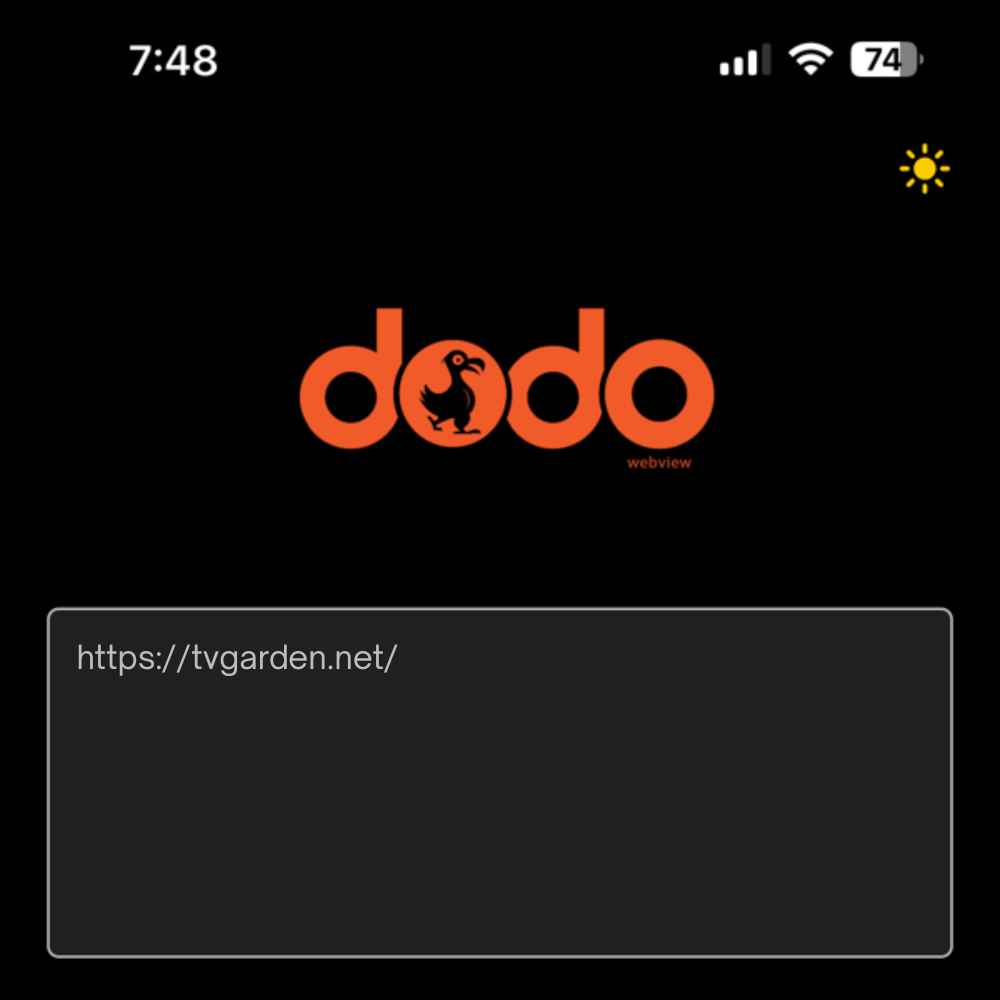
Step 1: Open the TV Garden Web inside DODO webview
- Download the DODO webview from the App Store and launch.
- Type – TVGarden.net in the address bar and load the site.
- Click on the Watch Online button to open the web portal.
Step 2: Make a homescreen shortcut (app icon)
- Inside the DODO webview, tap the share icon that is usually square-shaped with an arrow, or a three-dot menu.
- In the sharesheet, select the “Add to Home Screen” option.
- If you can not see that option, then tap and enable “Edit Actions” or use Safari.
- Name the shortcut as “TV Garden” and tap add.
- The icon will appear on your homescreen.
- Do give it a long press to move or put it into a folder.
When you open the site via that home icon, it should launch inside a standalone TV Garden webview, and you will feel more like using an app rather than a browser tab, but one final touch is needed to make the viewing experience even more immersive.
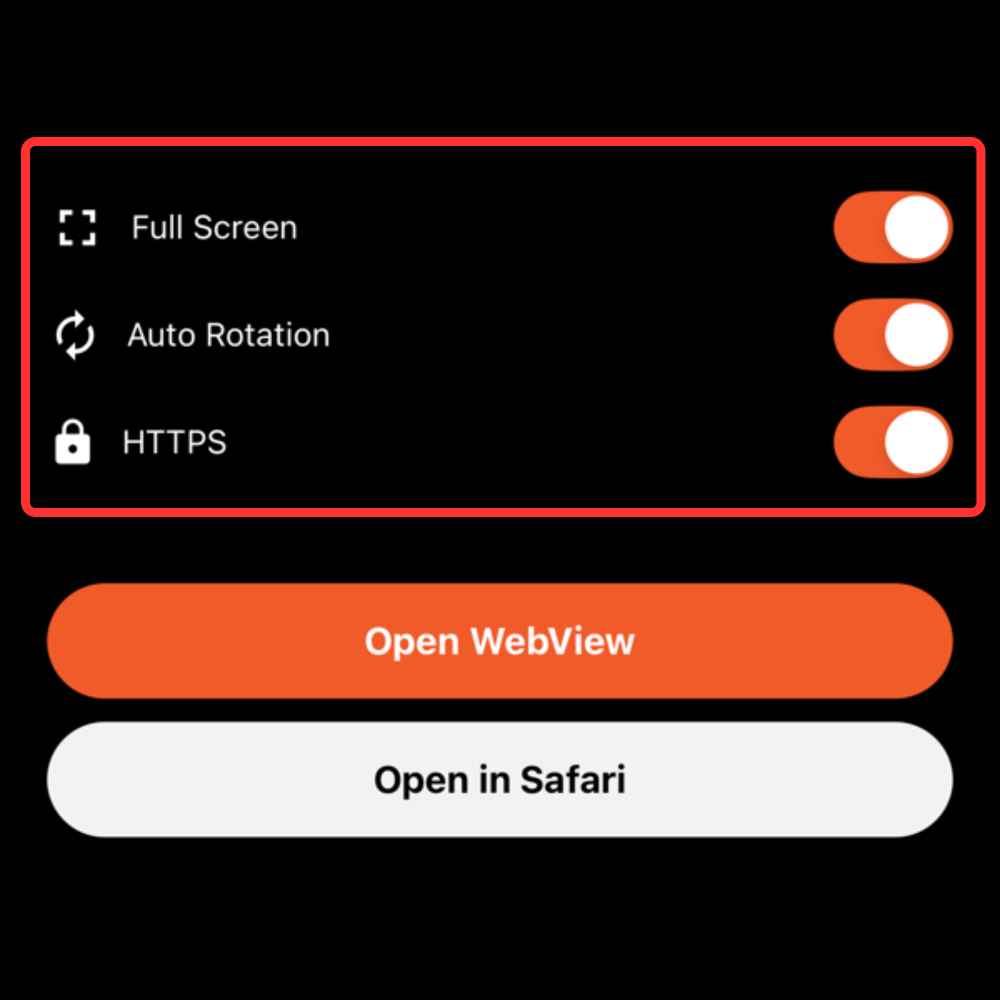
Step 3: Set the full-screen view in DODO webview
DODO webview provides options to remove UI chrome. You can do this after adding the home shortcut, then open the site from the icon:
- Open the DODO webview and go to its settings menu while the site is being loaded.
- Look for Full screen, Hide Status Bar, Hide Address Bar, or Hide Toolbars options and enable them.
- Now close and relaunch the TV Garden from the home-screen icon to confirm the changes.
Step 4: Improve the app-like behaviour and video experience
- Rotate your phone to landscape mode and tap the video site’s player full-screen control for the best watching experience.
- If the website uses its own full-screen player, it should hide any remaining bars.
- If audio or autoplay is blocked, check the iOS settings>DODO settings and allow autoplay/media playback wherever needed.
- If you face cookies or login failure, make sure to enable site or storage in the DODO settings.
Benefits of Using TV Garden on iPhone
There are so many rich features of TV Garden that make it a must-have app for all those who like watching live TV shows and sports. But mentioned below are some of its key highlights, so take a look.
High Quality Videos: TVGarden provides high-quality video streaming of live channels, and it automatically adjusts resolution according to your internet speed to minimise buffering. With high-speed data, the video quality remains excellent. Sports, news, and movies all appear clear, sharp, and detailed on your screen.
Ad-Free Experience: Annoying ad pop-ups worsen the watching experience. To enhance the user’s watching experience, TV Garden removes all ads, giving a complete ad-free experience so that while watching any TV channel, you’ll never be interrupted by unexpected advertisements.
No Buffering: Enjoy fast and seamless loading as it speeds up your server, eliminating long waits. The program also automatically adjusts video quality, whether weak or strong, ensuring optimal viewing.
No Jailbreak Needed: Even though the TV Garden app is not available on the App Store, you can use it through a web browser, which eliminates the need for sideloading an IPA file or using third-party app stores, so you can use TV Garden on your iPhone without a jailbreak.
Updated Content Library: With live TV channels, you will never run out of content to watch because there is always something fresh going on all the TV channels. Ensuring the audience never misses out on any premium and exclusive content.
FAQs
Is TV Garden safe to use on iOS devices?
Yes, TV Garden is very safe to use on iOS devices, as you do not need to download any third-party app on your iPhone. You can use the official web portal through a browser.
Do I need a VPN to access TV Garden?
No, VPN is not needed to use TV Garden. It gives you access to national and international channels without VPN or Proxy.
Can I use TV Garden on an iPad as well?
You can follow the same installation process to be able to access TV Garden on your iPad as well.
Does TV Garden support subtitles?
Some TV channels may have subtitles or on-screen caption but in most instances, subtitles are usually unavailable.
Conclusion
TV Garden is the best alternative to any paid online TV channel streaming platform. The app offers global TV channels across all genres without requiring you to pay for a subscription. Using TV Garden, you can watch live sports and TV shows in high-quality with minimal buffering. The best thing about this is that there are no ads or pop-ups in this app to ruin your viewing, so you can enjoy watching the show without any disturbance. It has a lot of exciting features for free, so giving it a shot on your iOS device is definitely worthwhile.