TV Garden is a global media hub platform offering a wide collection of live TV channels from 130+ countries across the planet. The app is widely used by millions, and some users could be app not working or unable to stream videos-like issues. Such problem are not common in this app but could occur due to various reasons. In this guide, you can learn the effective solutions to resolve the TV Garden Not Working problem on your own easily.
Effective Easy Tips to Fix TV Garden Not Working Problem
Restart the Device
Restarting is the common thing to do if the app suddenly stops working or fails to respond to your commands. Doing this basically resets the app’s runtime state in memory. When the app is continuously running, it holds network sockets, cached data, temporary variables, and if any glitches occur, it may make the app behave wierd or it may get stuck. Restarting the device fix the minor bugs and glitches imporving app performance.
Clear App Cache + Force Stop via ADB
Forcing a stop via ADB performs a deeper reset fix common issues like crashes, buffering loops, or “No Data” errors. Enable Developer Options and USB debugging, connect your device to a PC, and execute adb shell pm clear com.TVGarden.app that erases the entire data of this app directory at the system level, which is quite useful to fix app-not-working-like issues.
Disable Google Play Protect
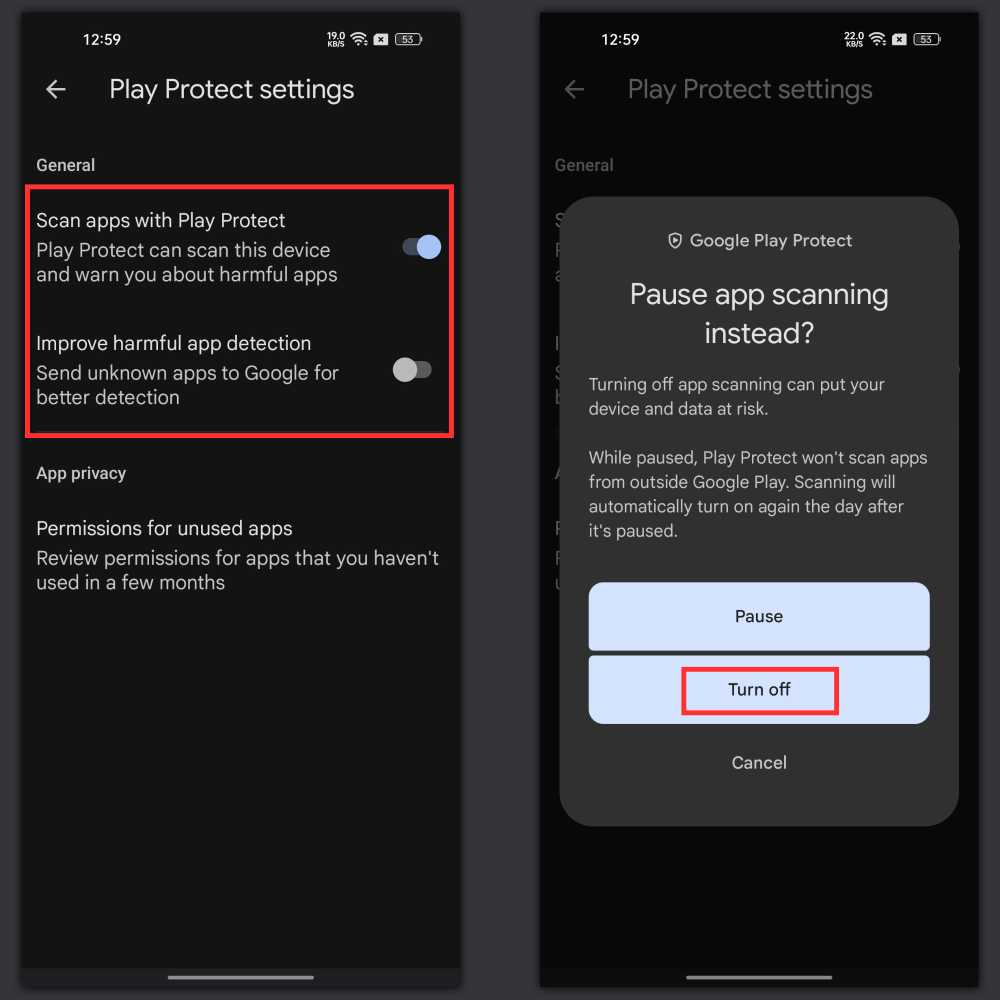
If you’re unable to install the TV Garden app or the app shows failed to install, maybe Google Play Protect stops the installation of this app since it is not available on the Play Store. Go to the Google Play Store, tap on the Profile icon on the top right corner, select Play Protect, and tap on the Settings icon, disable “Scan app with Play Protect” and” Improve Harmful app Detection” options.
Check Internet
We mostly think that the app must be from the app’s side, and we try to figure out their problem, but actually, the issue lies in the internet connectivity. As you know, TV Garden requires a constant flow of a fast and stable internet for buffer-free streaming. If the internet is slow, the app will work really slow or may not work in a few cases, so make sure you have a fast and stable internet. We suggest using Wi-Fi instead of mobile data.
Advanced Solutions When TV Garden Is Still Not Working
Bypass ISP Throttling
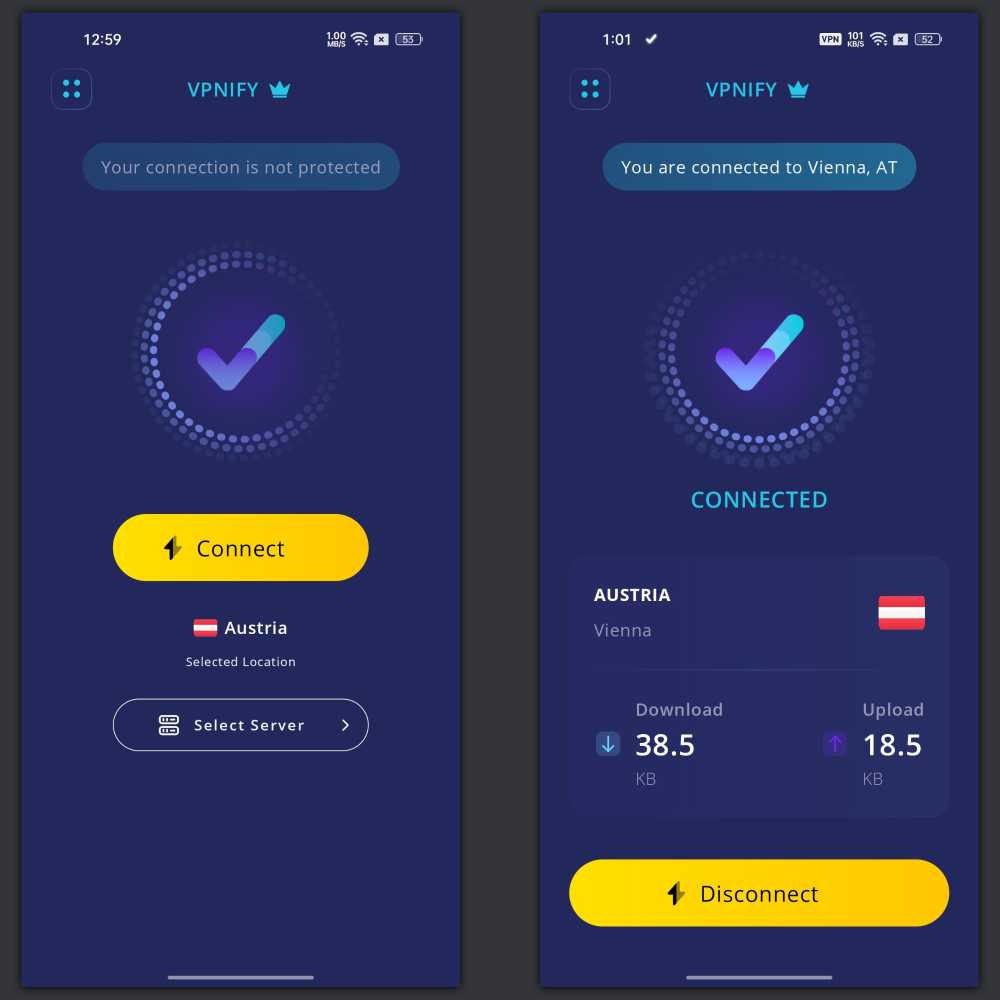
Using a VPN is a most easiest and simple way to bypass regional or geographical restrictions. TV Graden extracts streamable links from the public domain on the inetrnet and some of the streaming links are banned or restricted in certain regions, so few channels may not work, and it will only show the buffering screen. We suggest using a free VPN app from the Play Store and activating it to unlock access to restricted TV channels.
Reinstall APK
It is quite common that a signature mismatch or a modded build cause crashing issue when using the app. In some cases, the app failed to open because the downloaded APK file is corrupted. In this case, you have to uninstall the app and delete that APK file, then download the fresh APK again with a stable internet connection and install it again.
Change DNS
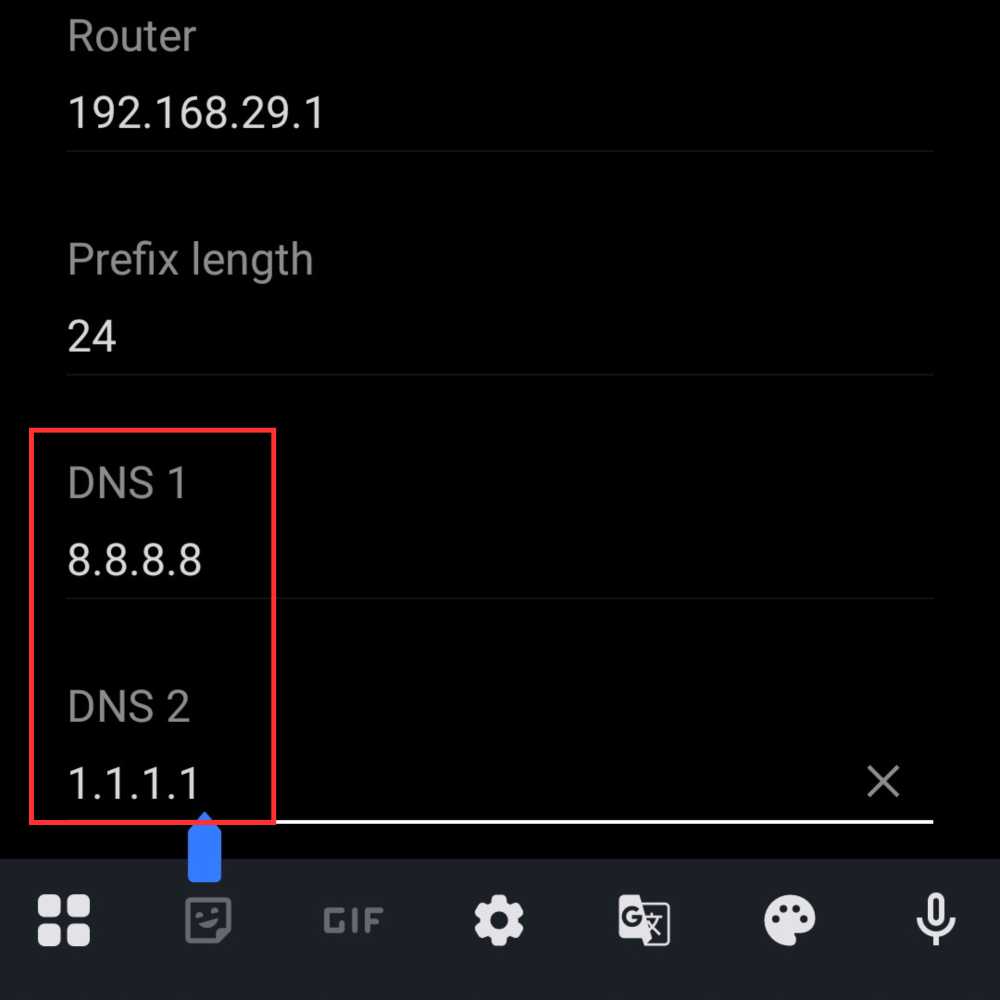
If the app opens but you’re unable to stream certain TV channels, changing the default DNS could help, as when you request a stream on the TV Garden app, your device queries your ISP’s DNS server to translate the CDN domain into an IP address. If the ISP filters or manipulates this lookup, the stream fails. To fix this, go to the Netflix & Internet in your device’s settings and select Private DNS, then Private DNS Provider Hostname, enter one of these – dns.google (Google DNS) or 1dot1dot1dot1.cloudflare-dns.com (Cloudflare DNS). Now, launch the app again, and this time it is likely to work.
Use Web Portal
TV Garden mobile app is not deisgned for iOS devices so it won’t work on iPhone and iPad devices. However, still iOS users can access all the TV channels and use its full services through the official TV Garden web portal. To access its web portal, follow this link. No signup or registration needed, you can start streaming your favorite TV channel for free in this app.
FAQs
Why is the screen black but audio is playing?
This is a just a minor glitch happen rarely and can be resolved by restarting the app.
How to get rid of longer buffering time on TV Garden?
Firstly, you have to make sure the internet connection is fast and stable or use a VPN if the streaming link is restricted or banned.
Why TV Garden is not opening on my phone?
Maybe the app is not compatible on your phone such as iOS devices, so you can use its web portal that work flawlessly across all Android and iOS phones.
Why is TV Garden stuck on the loading screen?
Maybe the channel you’re streaming is regionally restricted for you so you have to use VPN or make required changes in the DNS by chaging the default one to Cloudflare DNS to bypass this limitataion.
Conclusion
TV Garden is an amazing online live TV channel streaming platform compatible across various devices such as Smart TV, Android TV, PC, Android phones, and iOS devices. If you regularly use this app to watch live TV shows, sports and global news, you might face some techinal issues and glitches while using thsi app some day, however the issues are rare but could occur due to various internal and external reasons, so this guide could be extremetly helpful and i hope the solutions given above were useful to you and helped you in resolving app not working problem. You can contact our support team for any assistance or queries regarding this app.